
Add Bookings
Bookings are entered into the system by the following methods:
- Online by your guest using the availability calendars, booking buttons and booking page.
- Manually by yourself.
- Imported from other channels by the channel synchroniser.
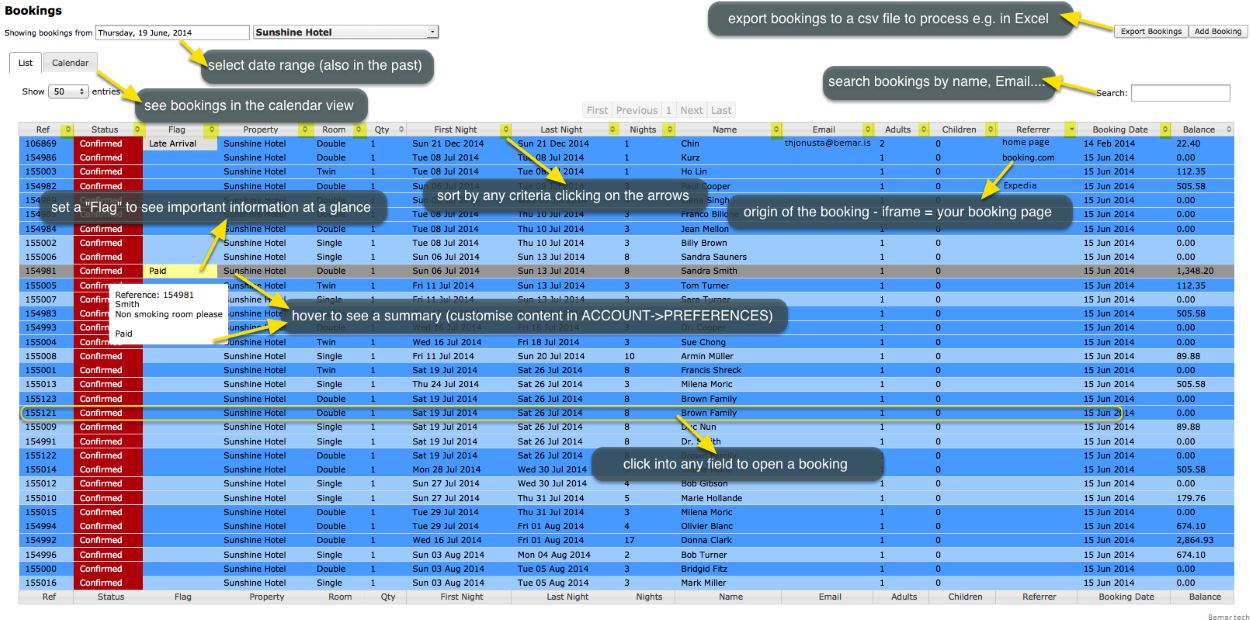
Status
"New" are bookings which have not been opened to view them. Once you open them the status will change to "Confirmed".
Add a new booking
Click on the ADD BOOKING Button on the top right. Alternatively you can add bookings in DASHBORARD -> ROOM GRID under INVENTORY.
Manage bookings
After clicking on BOOKINGS in the top menue you will see your bookings in a a CALENDAR view or LIST view. By default you will see all bookings from today. You can use the selector to view only certain bookings.
You can edit a booking by clicking on it to open the booking in a popup.
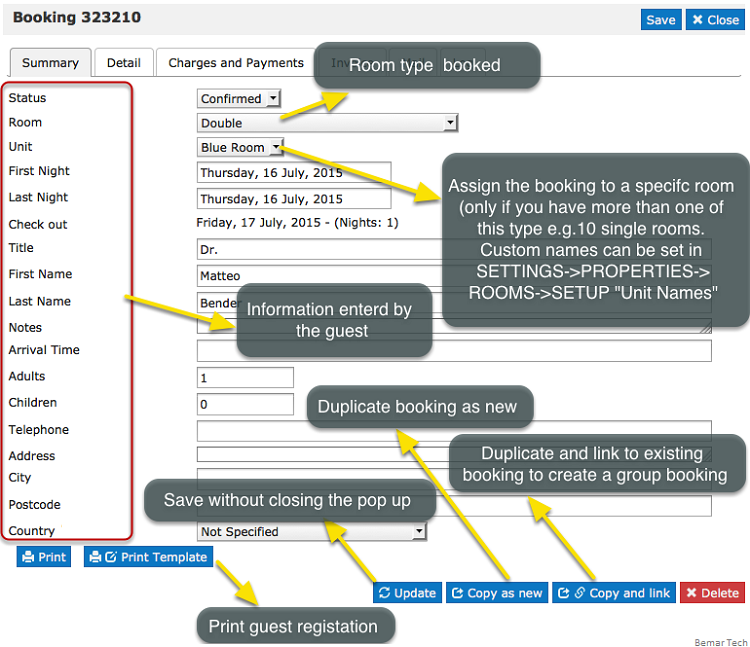
FLAG can be used to flag bookings that require special attention. The flag text is displayed with the other booking fields within the control panel and the [FLAG] template variable can be used to display this text as "hovertext" when the mouse cursor is positioned over the flagged booking in the Calendar view.
Split can be used to split a booking for multiple rooms into separate bookings so each can be assigned to an individual room. All split bookings will be linked so they can be easily managed.
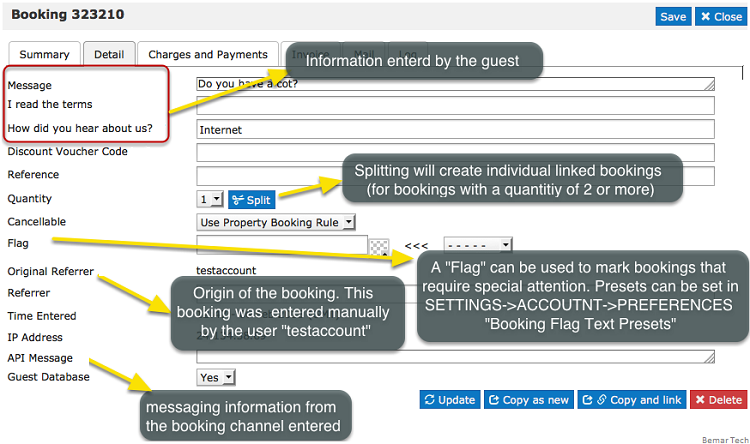
In the tab Charges and Payments you may enter more charges and payments manually.
- Enter chargeable items or and payments. Click Recalculate to update the balance and enter a blank new row.
- To remove an item check the remove box and click Recalculate.
- The balance will be calculated and displayed for this booking in the booking summary.
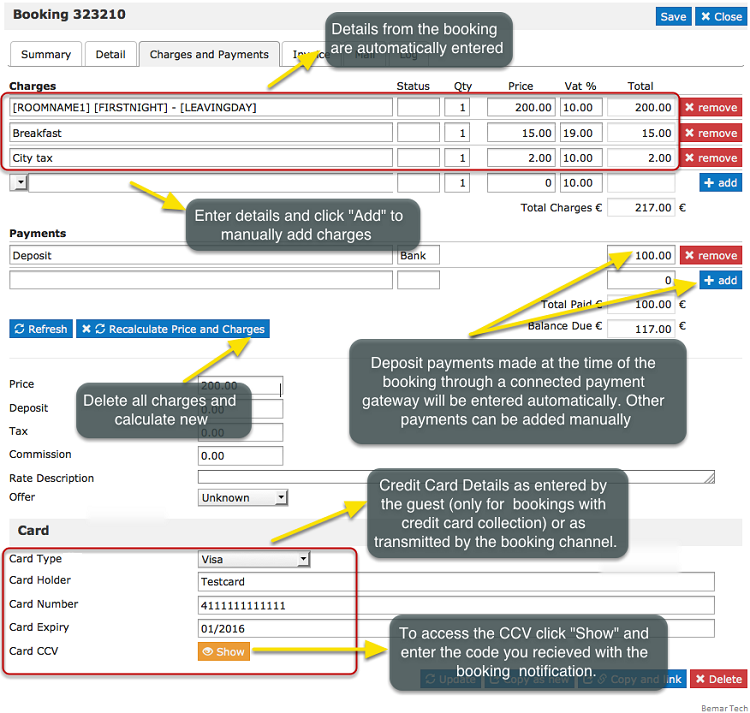
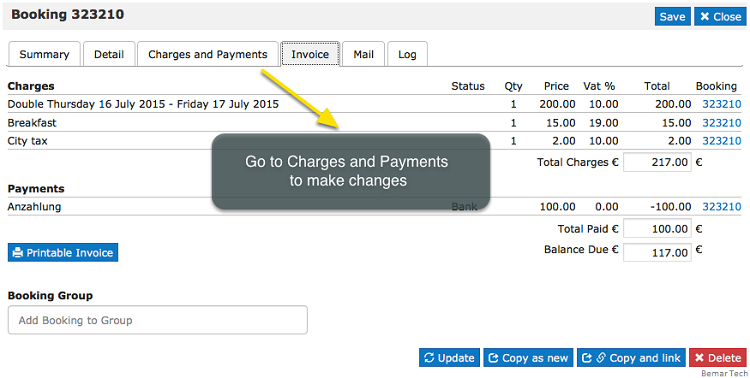
In the tab INVOICE you print an Invoice
- The invoice can also be printed with a message you can specify under SETTINGS -> GUEST MANAGEMENT -> INVOICE
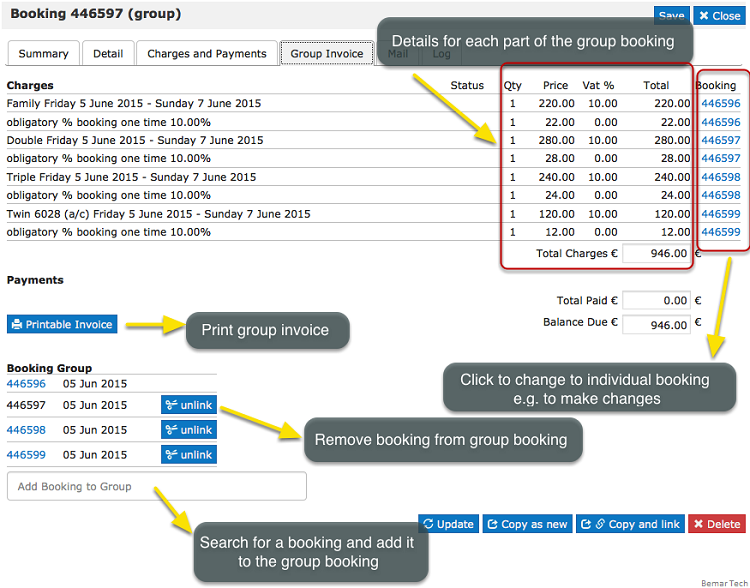
You can also manage and create group bookings.
- Changes have to be made in each individual booking
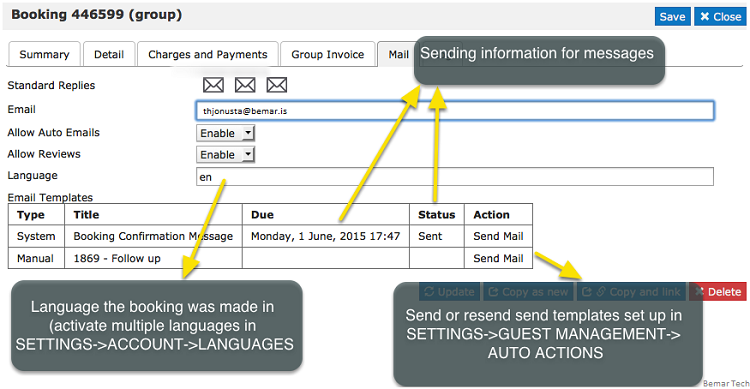
In the tab "Mail" you can send out the standard e-mails you have defined under GUEST MANAGEMENT
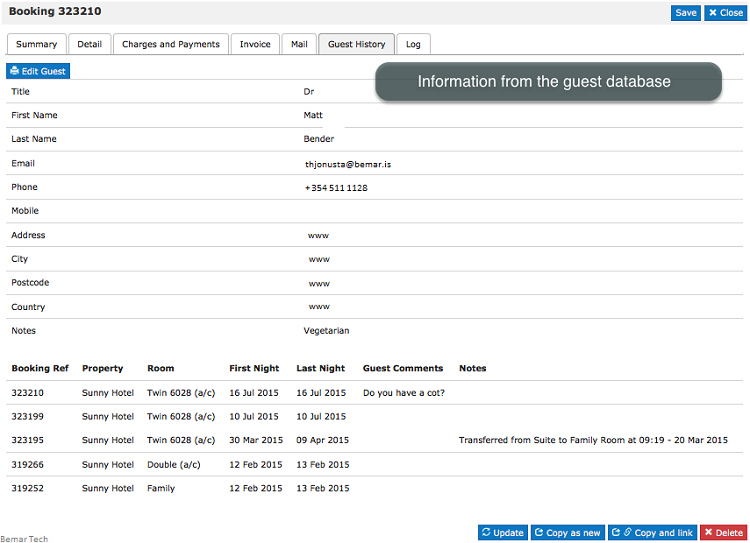
In the tab "Guests" tab you can see information from the guest database (GUEST in top menu)
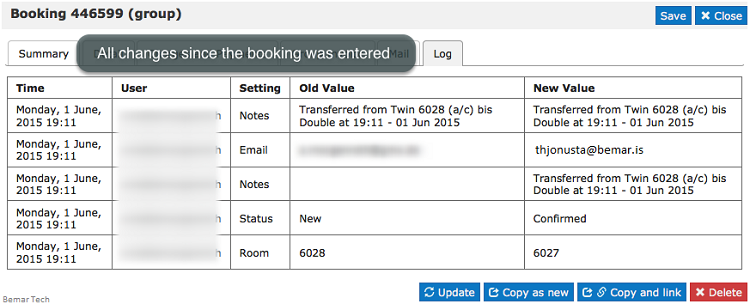
"Logs" shows all changes which have been made.
"Íslenska"
Hópa bókun:
1. Hefja bókun á hefbundin hátt
2. Detail/Quantity td.2 og smella á Split
3. Til að laga verð (uppfæra Group Invoice) er farið í Charges and Payment, þar getur þú valið í efsta flétti glugga þær viðbótar bókanir sem urðu til og þarf að smella á Recalculate Price and Charges til að þær fái sér verð og bætist undir Group Invoice.
Ef bæta á bókunum úr öðrum herbergisflokkum þá eru þær settar inn á hefbundin hátt rétt eins og hér fyrir ofan, og til að setja þær í hóp með öðrum er gott að finna master bókun úr öðrum herbergisflokk (Add Booking to Group) og þegar þú smellir á master bókun úr öðrum herbergisflokk þá tengir þú þær allar, getur leitað bæði eftir nafni og eða bókunarnúmeri.
*Ath unnið er að nýrri lausn fyrir hópabókun sem við vonumst eftir að kynna í mars 2016!
